Mac Control Wheel

macOS · trackpad · app switching

Switch apps with a turn of your hand.

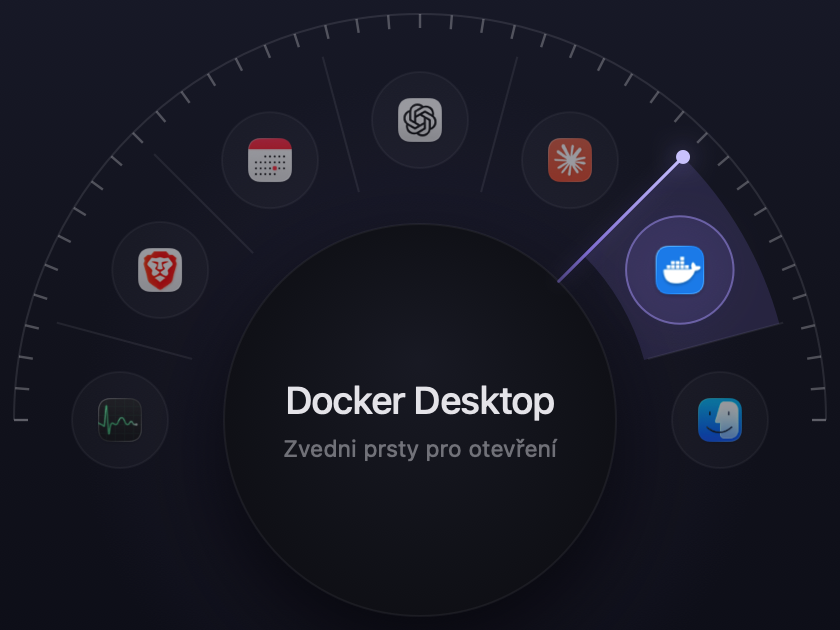
Put three fingers on the trackpad and turn your wrist. A wheel of your apps appears at the pointer, the needle follows your hand, and every app clicks as you pass it. Lift your fingers and you are there.

  • No keyboard shortcuts
  • No Cmd-Tab, no hunting for windows
  • Fixed positions your hand learns

In development. The first release is not out yet.

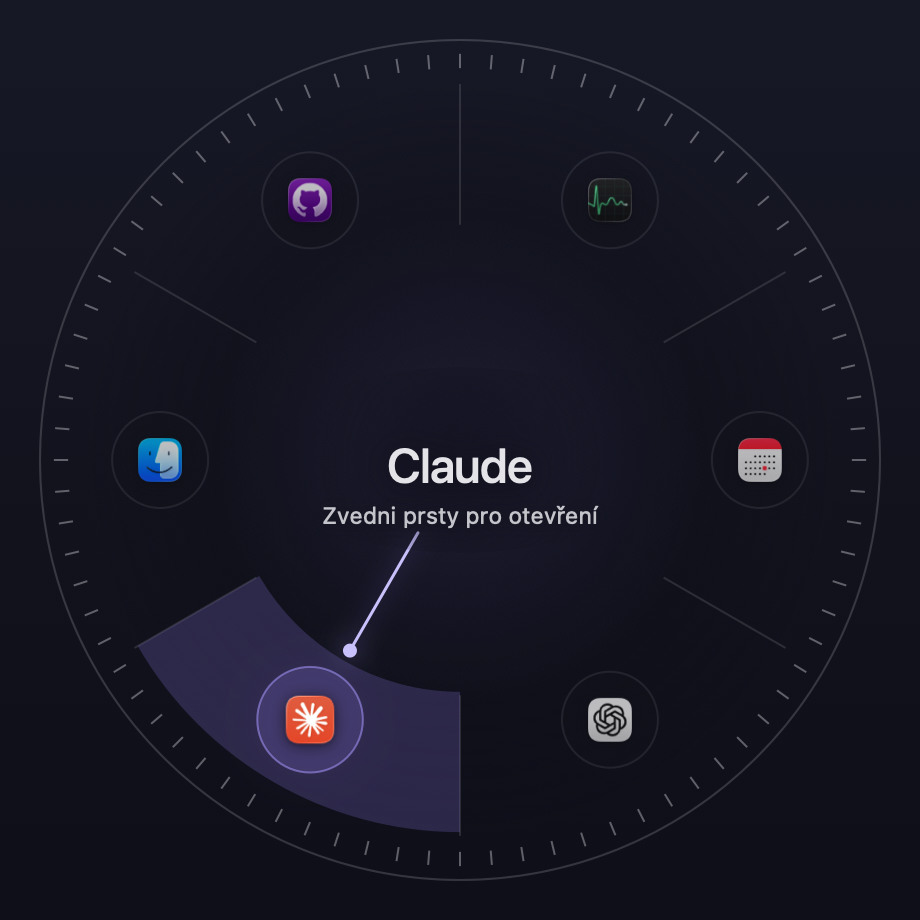
The dialer with seven apps, the needle pointing at the selected one

Three moves

Place, turn, lift.

Place your hand

Your thumb stays put as the pivot, index and middle finger rest beside it. The fingers have to lie still for a moment before rotation starts counting — that catches swipes in the sieve, so the wheel stays away when you only meant to scroll.

Turn your wrist

Every 12 degrees of hand rotation moves the selection by one app and the trackpad clicks. The resting position is in the middle, so you can go both ways and the furthest app is 36 degrees of wrist away — not 180.

Lift your fingers

The chosen app comes forward, even when it is hidden or minimised. The wheel disappears. If you change your mind, run to the end of the arc and lift your hand there.

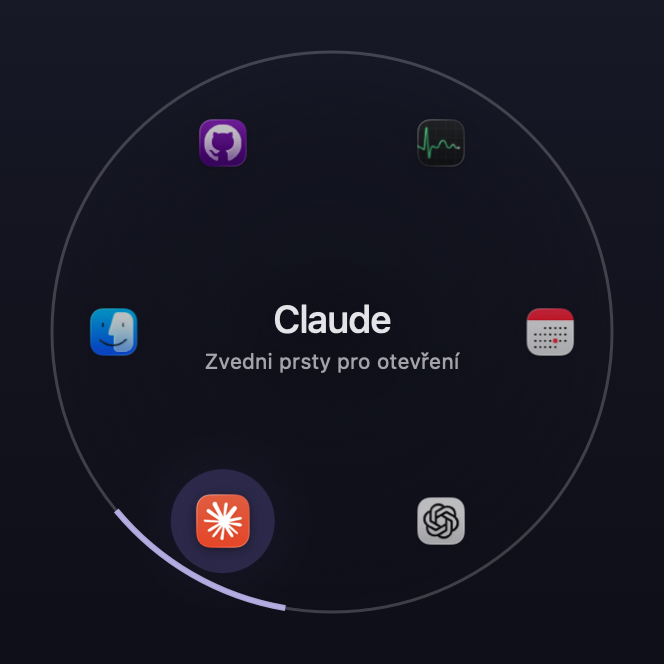
The dialer at rest with six apps
At rest
The dialer with seven apps, the needle pointing at the selected one
Selecting
The dialer at the end of the arc
End stop

Two gestures

Pick what summons the wheel.

Two grips can summon the wheel. They differ in the number of fingers, so they never get in each other's way — both can be on at once and the app knows which one you are doing.

Three fingers, thumb as pivot Default

The thumb stands still as the pivot, index and middle finger sweep an arc around it. Physically it is the motion of turning a knob on a radio.

  • Collides with no macOS system gesture.
  • Measured wrist range 50–72°, comfortably enough for seven apps.
  • The pivot is the thumb's measured position, not an estimated centre — which is why the selection does not jitter.

The hand sweeps ±16° around the thumb

The needle turns ±40°

The thresholds were measured on one hand. If a gesture does not fit yours, the settings show live where your hand is and where the threshold sits.

Interactive demo

Turn the wheel right here.

A simplified demo in the browser — the same selection maths, only you drag with a mouse instead of a trackpad. Drag around the centre, use the scroll wheel, or the arrow keys.

Position 3 of 6

← → one position · Home End to the ends · drag or scroll for fine control

Four looks

A wheel that stays out of your way.

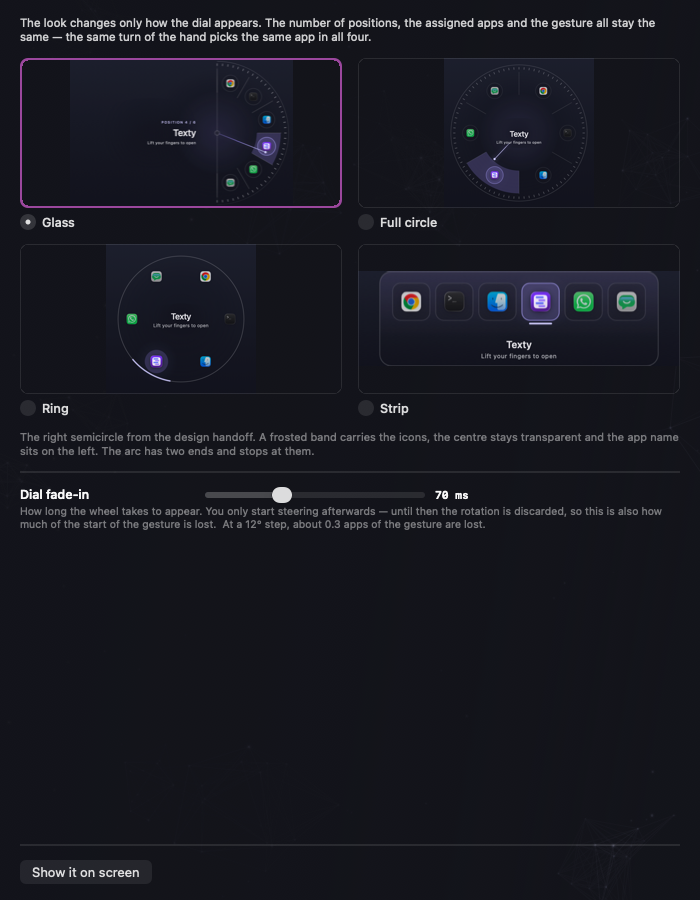
The look changes only how the dialer appears. The number of positions, the assigned apps and the gesture stay the same — the same turn of your hand picks the same app in all four.

Glass look: right semicircle with icons and the name on the left

Glass Default

The right semicircle from the design handoff. A frosted band carries the icons, the centre stays clear — under the wheel you still see the document you are leaving. The app name sits on the left.

End stops
Full circle look: icons all the way around, the name in the middle

Full circle

Icons all the way around, the name in the middle. Past the last app comes the first one again, always at the same step.

Wraps around
Ring look: a thin circle with a mark at the selected app

Ring

Just a thin ring, a mark at the selected app and the name in the middle. The smallest intrusion on the screen.

Wraps around
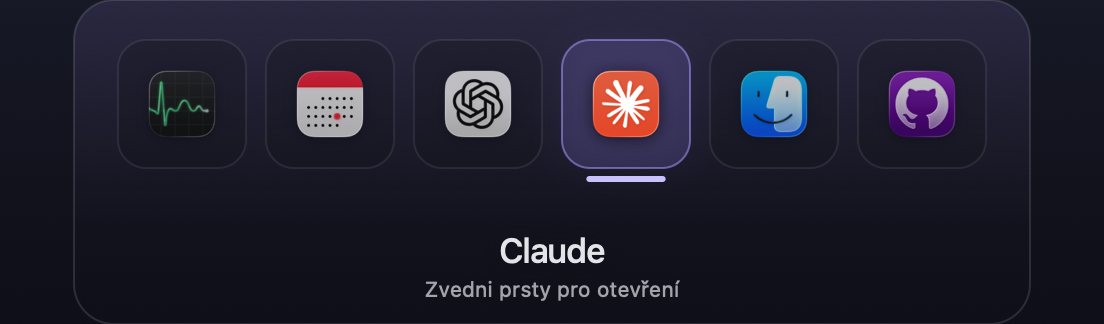
Strip look: a horizontal row of icons

Strip

A horizontal row of icons at the pointer. No wheel at all — useful when a circle over your document gets in the way.

End stops

Why one look has ends and the other does not.

A drawn circle promises there is no end, so it wraps. A half arc and a row of icons show their ends, so the selection stops there and the end stop clicks differently from a normal step. The step of the hand is the same in every look.

Settings

Everything worth changing, in one window.

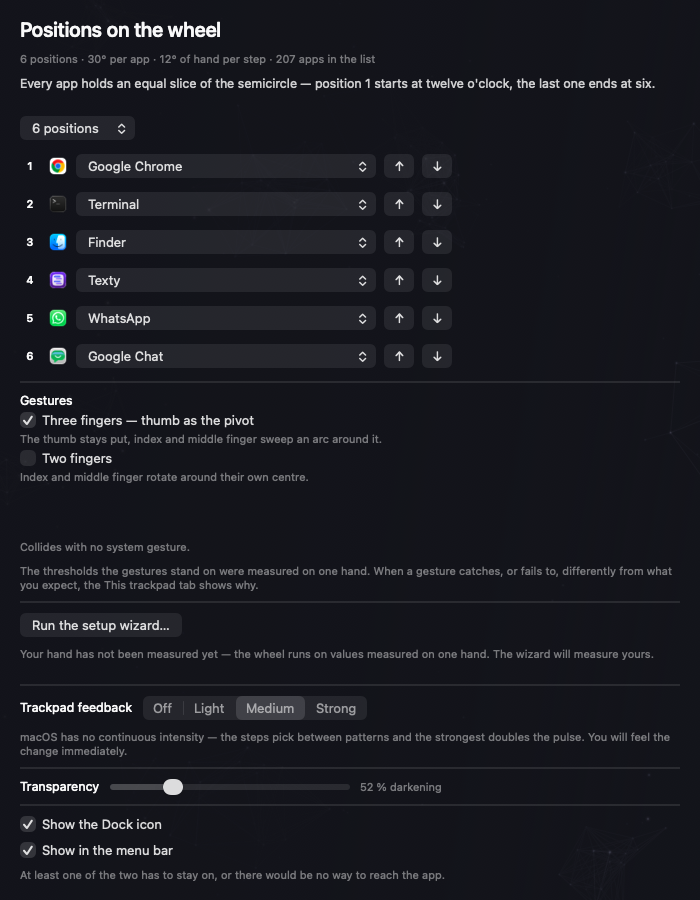
The Gestures and apps tab: the wheel's positions with assigned apps, gesture checkboxes and trackpad feedback

Gestures and apps

  • Three to seven positions; as many positions as there are sectors.
  • Each position gets an app from the list — running apps at the top, everything installed below, and a Browse button for the rest of the disk.
  • Positions can be swapped with the arrows. An app can hold only one position.
  • Each gesture switches on and off separately. The last one enabled refuses to switch itself off.
  • Trackpad feedback in four steps: Off, Light, Medium, Strong. You feel the change at once — the step fires the moment you pick it.
  • Transparency of the frosted band, with a live preview on screen.
  • Icon in the Dock, icon in the menu bar, or both. At least one has to stay.
The Appearance tab: four dialer looks drawn with your own apps

Appearance

  • Four looks, each drawn as a preview with your own apps in the places they would be in mid-gesture.
  • A button that shows the chosen look at full size on screen.
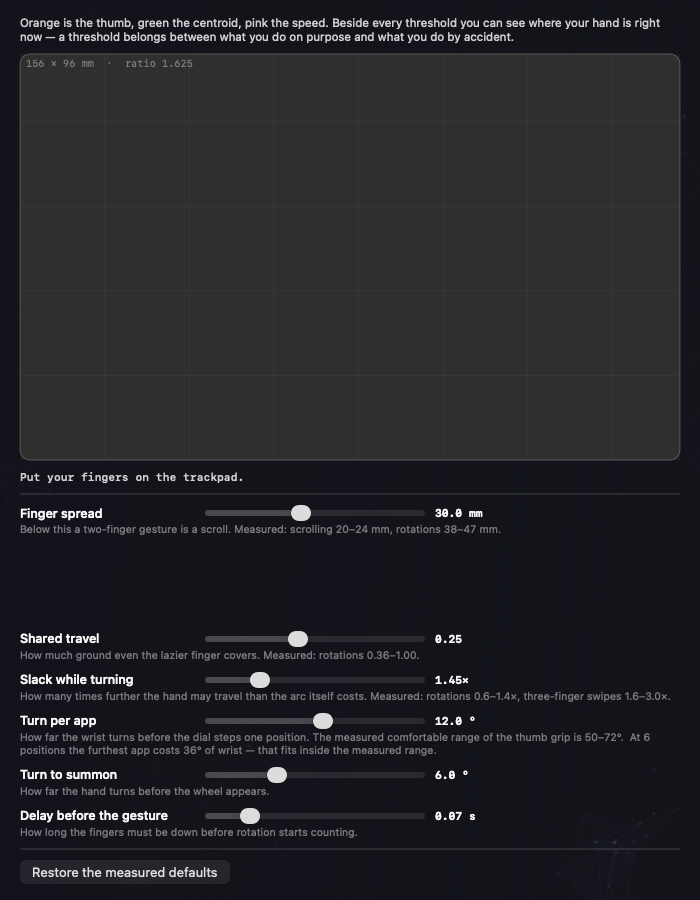
The This trackpad tab: a live view of the trackpad with the thumb in orange and threshold sliders

This trackpad

  • A live view of the trackpad in its real aspect ratio, with the touches as the app sees them. The thumb is orange, the centroid green, speed pink.
  • Every threshold shows where your hand is right now — and whether it passes.
  • The thresholds can be moved: finger spread, finger travel ratio, thumb movement tolerance, rotation to summon, dwell before the gesture.
  • A button that restores the measured defaults.

Settings are stored in a readable JSON file, not in system preferences. It can be opened, diffed and edited by hand.

The paid version

Pro is the whole dial.

Everything below is what a licence unlocks. The free version keeps working for as long as you like — it just holds fewer apps and wears one look.

All seven positions

The free version gives you four. Pro fills the whole arc, so the apps you switch between all day are one turn away.

Every look

Glass, full circle, ring and strip. Free keeps Glass.

Two Macs

One licence covers a laptop and a desktop. You can see both in the app and disconnect either one yourself.

Fine tuning

Thresholds, the detent, how far the wheel turns per app. Set it once to your own hand.

Keeps up with macOS

The gesture is read through a private framework Apple can change with any release. Keeping that working is what the subscription pays for.

More to come

Per-app profiles, a second gesture and actions beyond switching are planned. They land in Pro as they arrive.

Pricing

Thirty days of everything, then it is up to you.

Every install starts with a full 30-day trial — no account, no card. When it ends the app does not stop: it drops to the free version and stays there.

Free

$0

for as long as you like

  • Four positions on the dial
  • The Glass look
  • The whole gesture, unchanged
  • Three positions stay locked and visible

Your setup is never erased. Pay later and it comes back exactly as you left it.

Pro, monthly

$2.99 / month

same features, more flexibility

  • Everything in the yearly plan
  • Cancel any month

The yearly plan works out cheaper if you keep it past a year.

Prices in US dollars, VAT added at checkout according to your country. Sold by Paddle, who handle payment, invoicing and tax. Buying is not possible yet — the app is still in development.

Measured, not guessed

The numbers it stands on.

1.625 : 1the trackpad's real aspect ratio, which the maths uses
12°of hand rotation per app by default — the wizard measures your own
~9,600frames of recorded real gestures the thresholds stand on
0permissions needed to read touches
120 Hzhow often the wheel redraws
50–72°measured range of the thumb-pivot gesture
3–7positions on the wheel
4looks for the dialer

The trackpad is not a square.

The trackpad measures 156 × 96 mm, but the coordinates it reports run 0–1 on both axes. Computing the angle from those would mean the same turn of the hand moves the selection by one app at one wrist angle and by three at another — an error of up to 11 degrees. Mac Control Wheel converts the touches to millimetres first and computes the angle only then. It reads the sensor's size from the device, so this holds for an external Magic Trackpad too.

Thresholds from recordings, not from feel.

Rotations, swipes, pinches, scrolling and dragging are recorded as a corpus of frames and replayed through the recognizer as tests. The ranges come from there: a real rotation slides the hand across the pad by at most 1.5 mm, the lightest swipe by 2.2 mm. The threshold sits in that gap, not in the middle of guesswork.

Fixed positions instead of most-recently-used.

The list of apps does not reshuffle between invocations. If the order changed, so would the movement needed to reach a given app — and the muscle memory the whole wheel exists for would have nothing to stand on.
What the app sees

It stays on your Mac.

  • No trackers, no advertising identifiers, no third-party analytics. What leaves your Mac is a licence check — an anonymous device fingerprint — and a count of how many times a day you opened the wheel.
  • Reads touches on the trackpad and the list of running apps. Which apps you have and which you switch to never leave the machine — the count is a number, with no names attached, and the app shows you the same figures it sends.
  • Does not need Screen Recording. App icons and names are available without it.
  • Accessibility is optional. Without it switching still works, it just will not raise a minimised window.

Where it is

In development.

What works

  • Reading the trackpad, both gestures, recognition against a recorded corpus.
  • The wheel in four looks, detents, haptics, end stops.
  • Switching apps, including hidden and minimised ones.
  • Settings, the menu bar item, the live view of the trackpad, usage statistics.
  • The setup wizard: it fills the wheel, picks the gesture and measures your wrist.

What is still missing

  • The first public release. The app is signed and notarised, but the build is not out yet.
  • Automatic updates. A new version has to be installed by hand for now.
  • Launch at login.
  • Mirroring for left-handers.

Requirements

  • macOS on Apple silicon.
  • A trackpad — built in, or a Magic Trackpad.
  • It will not be in the Mac App Store: the app needs access that the sandbox does not allow.